How to exclude Robopack and Tenant Manager from multi-admin approval
A very recent Microsoft change means that any Graph calls will now be impacted by your existing multi-admin approval policies unless they are excluded from your policies. In practice this means that all app updates, device actions, policy restores — basically all functionality in our applications — would require an admin within the tenant to approve every action.
At Robopack, we decided this would not be a good experience for our customers, and would detract from the whole purpose of our applications: making your life easier. Fortunately, you can exclude our enterprise applications from the multi-admin approval policies. This guide walks you through it.
Without this exclusion, pushing out 10 apps and 30 policies would mean clicking approve 40 times. Excluding our applications keeps your automation running while leaving multi-admin approval in place for everything else.
| Enterprise Application Name | Enterprise Application ID |
|---|---|
| Robopack | 8a363ebc-c281-4360-bbcc-4b1ee485ef7e |
| Tenant Manager | a56a525c-aa0a-4698-8cf2-703f64485c5d |
Step-by-Step Guide
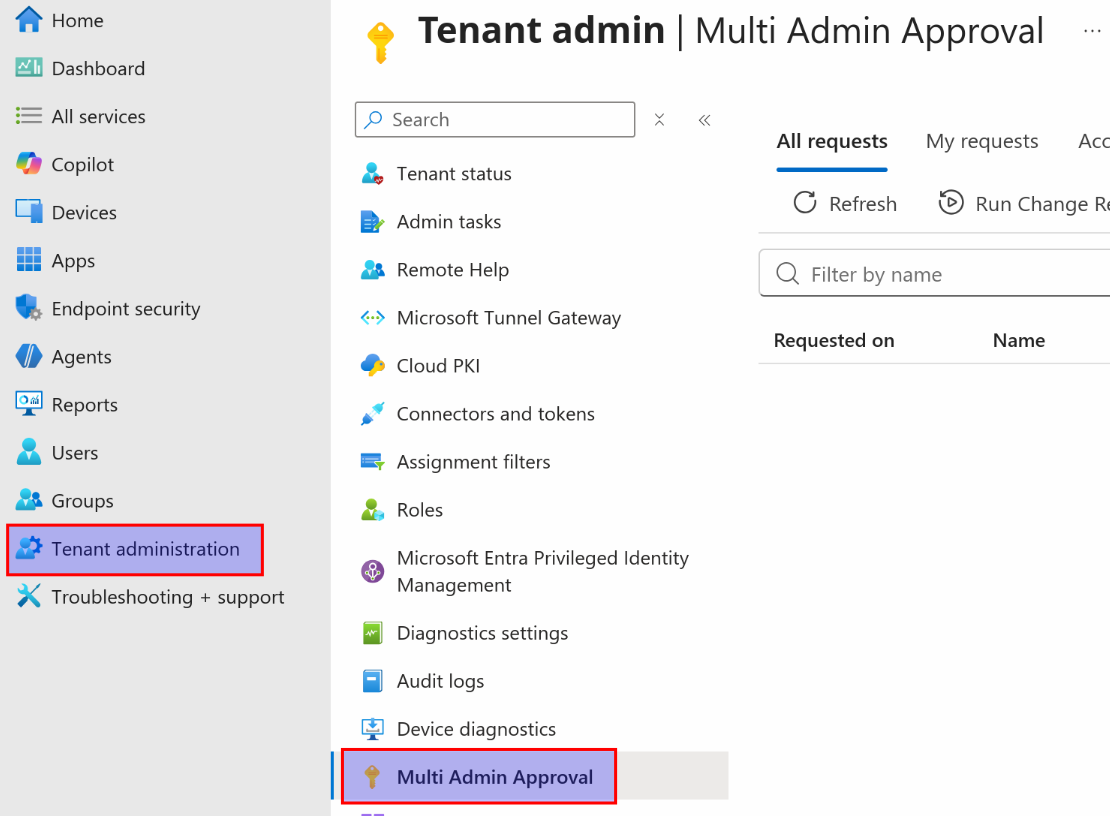
1. Open Multi Admin Approval
In Intune, select Tenant administration, then choose Multi Admin Approval.
2. Open Access policies
Select the Access policies tab.

3. Edit the policy exclusions
Edit your access policy and select Edit next to Exclusions.
Which policies you edit depends on the product: for Robopack, you only need to edit the App policy. For Tenant Manager, edit all policies.
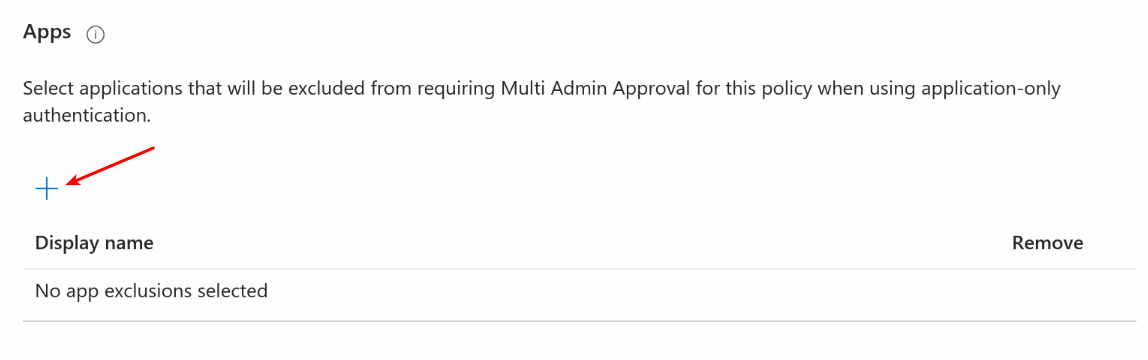
4. Add an app exclusion
Under Apps, select the + to add an exclusion.
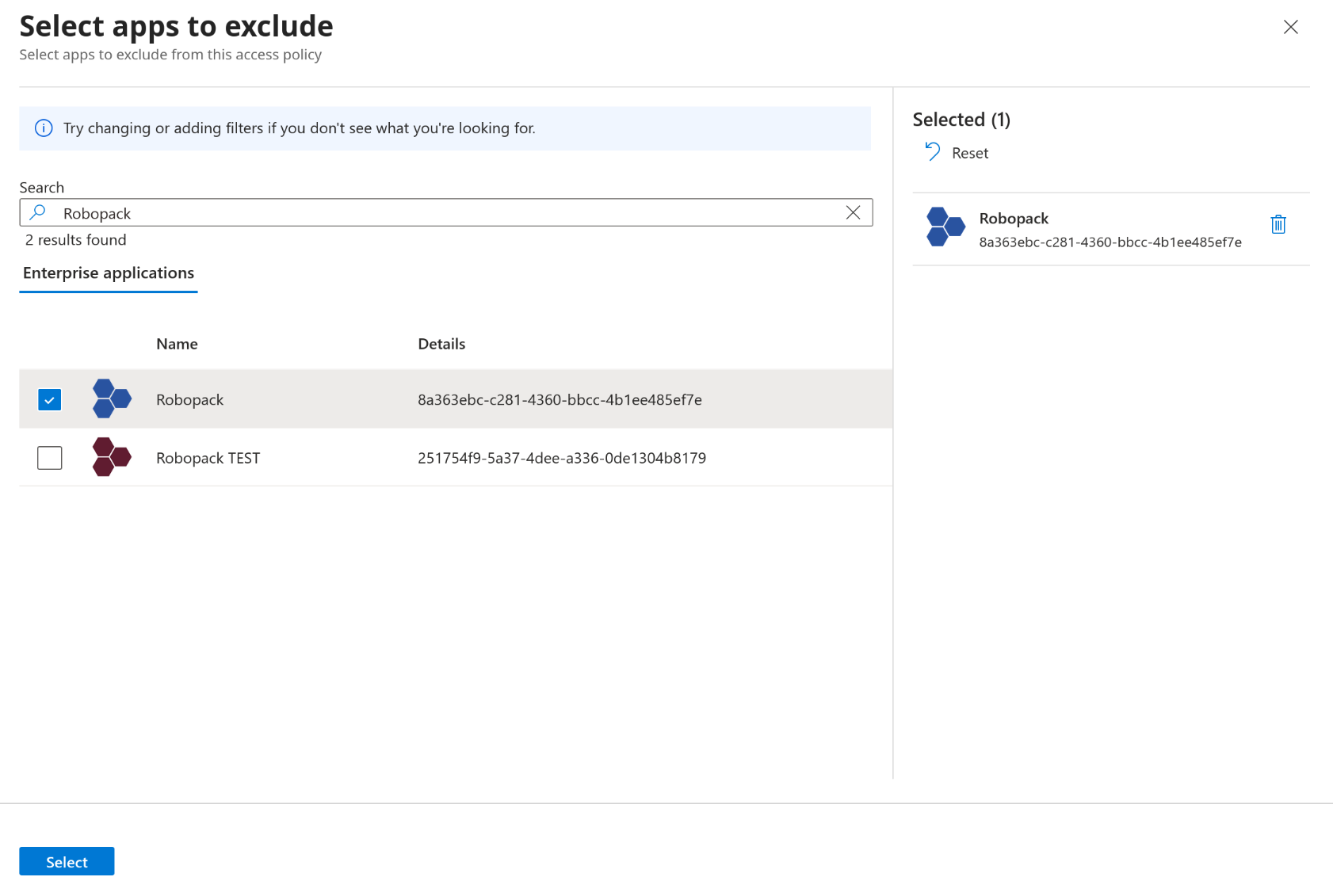
5. Select the enterprise applications
Search for the Robopack enterprise application (ID 8a363ebc-c281-4360-bbcc-4b1ee485ef7e) and select it.
For Tenant Manager, also add Tenant Manager (ID a56a525c-aa0a-4698-8cf2-703f64485c5d).
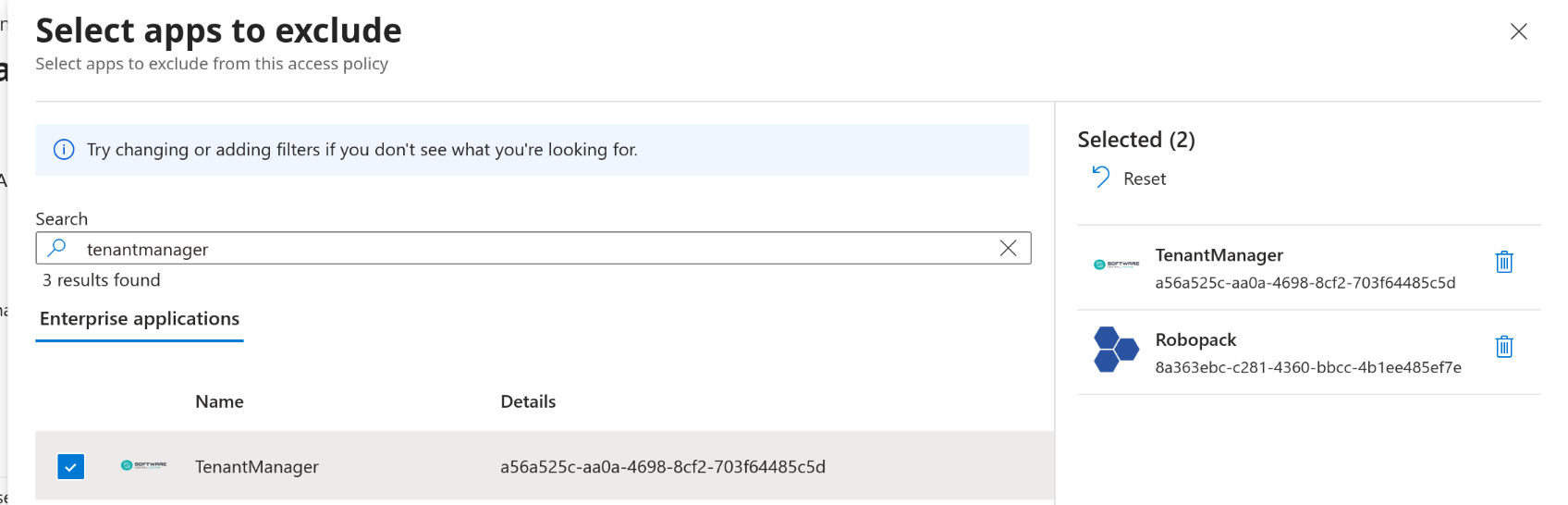
You do not need to exclude the other two Tenant Manager apps — they are used for authentication only.
6. Save the policy
Save the policy to apply your changes.
