Frequently Asked Questions
General
What is Robopack?
Robopack is a cloud-native platform that automates app packaging and patch management for Microsoft Intune. It provides access to over 30,000 applications and automates the entire lifecycle from packaging to deployment.
Where do apps come from?
Robopack sources applications from two repositories:
- Winget — the Windows Package Manager repository, where vendors typically publish updates first
- Microsoft Store — the official Microsoft Store
If an app is not listed in either source, it cannot be added as an Instant App. You can use Convert Package to upload your own installers as custom apps.
Learn more about how these repositories are validated in our blog post: How We Validate 30,000+ Apps From Community Repositories.
Is Robopack ISO 27001 certified?
Yes. Robopack holds ISO 27001 certification, ensuring that your data and operations meet international information security standards.
How much does Robopack cost?
Robopack offers graduated pricing starting at EUR 3.50 per device/year. For commercial use above 50 devices, a minimum annual fee applies until 390 devices. Visit robopack.com/pricing for current pricing, or request a free trial.
Can I try Robopack for free?
Yes. You can request a free trial at app.robopack.com/trial. The trial gives you full access to all features. See Setting Up Your Free Trial for a walkthrough. The default trial limit is 25 packages, but support can increase this to 250 upon request.
What is the free licence?
Organisations with fewer than 50 devices in Intune qualify for a free licence. Support is not included with the free licence. If the environment exceeds 50 devices, a paid licence is required.
NGOs and non-profit organisations above the free-licence limit receive discounted pricing rather than a free licence. Contact csm@robopack.com for details.
How does device counting work for licensing?
Robopack counts Windows devices enrolled in Microsoft Intune across all connected tenants, as reported by Microsoft Graph and refreshed daily. See Device-Based Pricing for the full definition: what is and is not counted, how the count is used for invoicing, and what to do if it does not match your own figures. The count is not used for automated licence enforcement.
Does Robopack have an API?
Yes. Robopack provides a public V1 API for managing flows, deployments, and viewing Radar data. An interactive API browser is available in Settings > API Integration > API Documentation. The V1 endpoints are the only ones supported for external use — other endpoints visible in browser network requests are internal and unsupported. Note that certain operations require additional tenant permissions to be granted to the virtual API users, otherwise errors can occur. For example, accessing Radar data via the API requires the "See / read information" tenant permission; modifying or deleting Robopatch Flows requires the "Upload apps" tenant permission.
Read the Robopack API guide for authentication, practical examples and a searchable endpoint reference.
How do I grant additional permissions to the API users? I do not see them in the list.
While the API users do show up in the list of Users in Robopack, they are not currently available for selection in the Direct assignments dropdown menu. Unfortunately, at this time, we must grant the necessary permissions to all users in the Robopack organization in order for the permission(s) to apply to the API user(s).
In Robopack:
- Navigate to Settings
- Navigate to Tenants
- Under Tenant permissions, click + Add tenant permission
- Select the Tenant
- Select the permission(s) required
- Example: To allow access to see Radar data, tick See / read information
- Example: To allow access to create, modify, or delete Robopatch Flows, tick Upload apps
- Tick Grant to all users in organization
- Click Save changes
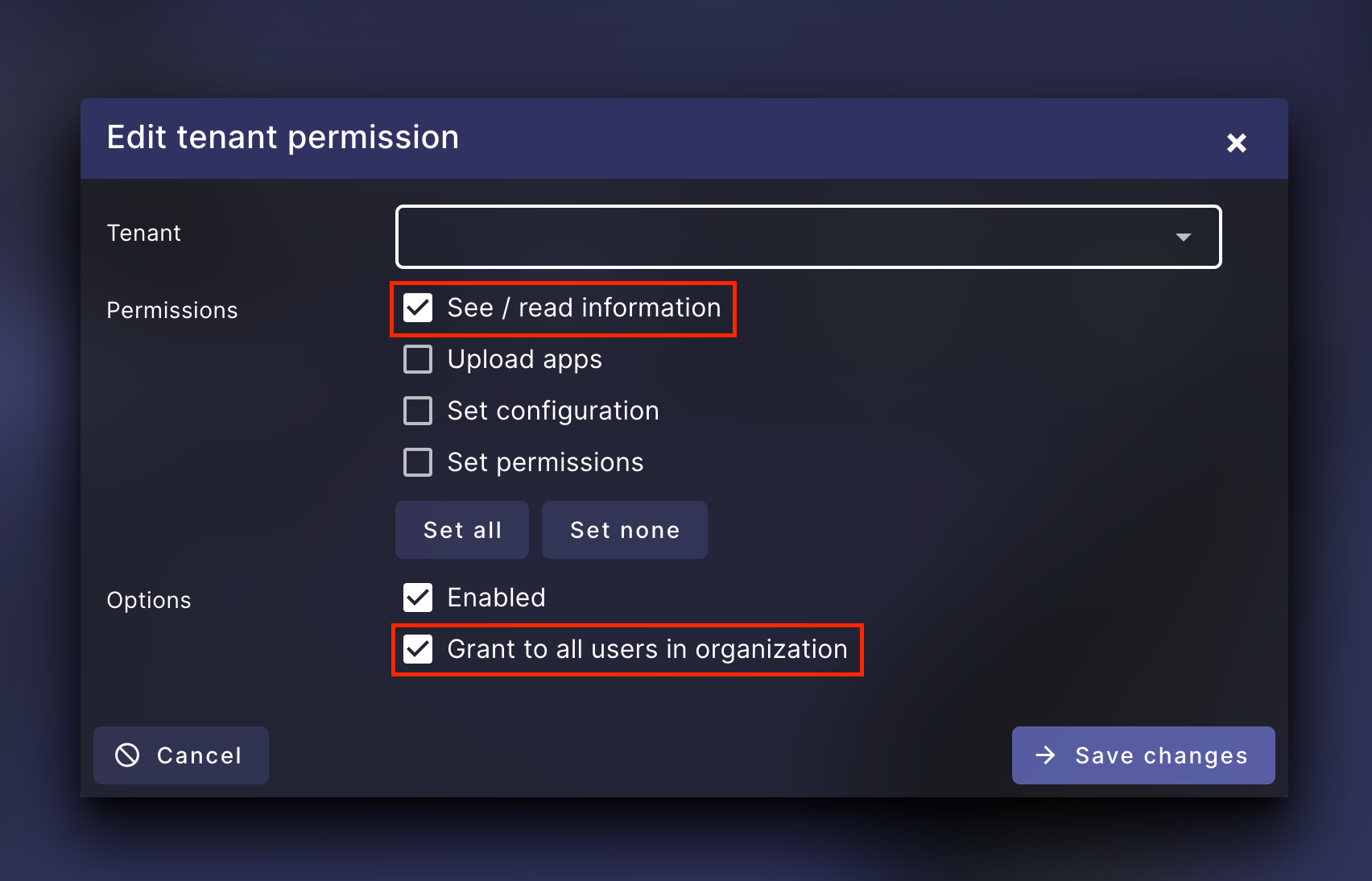
By following the steps above, you are granting the selected tenant permission(s) to all users in your Robopack organization. View the list of users under Settings > Users to evaluate the potential impact of granting the permission(s).
What do the three percentages shown during the analysis phase of a package correspond to?
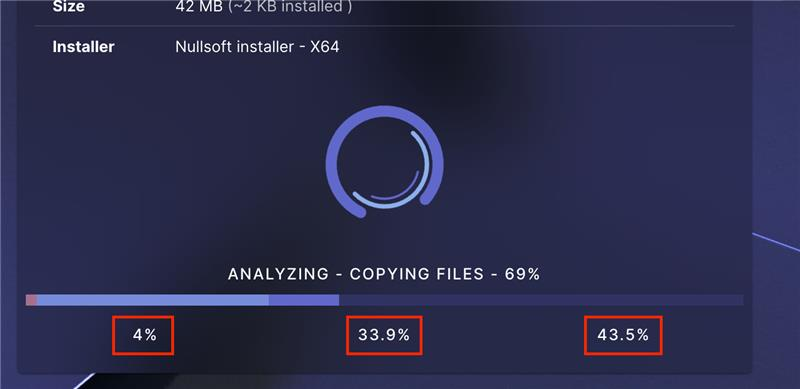
The percentage values shown refer to the CPU usage in the virtual machine where the package or script is being tested:
- Left: The threshold for when the installation or uninstallation process is considered to have timed out (the default for all packages is 4%; the support team can lower this to 2% for Instant Apps if necessary).
- Middle: The average CPU usage during the last 30 seconds.
- Right: The current CPU usage.
When the average CPU usage (middle) reaches the threshold (left), the installation is considered timed out and a error message will be displayed in Robopack to that effect ("Package installation timed out").
How do I contact support?
Support can be reached via support@robopack.com or by using the support chat in the Robopack portal at app.robopack.com.
Setup & Configuration
How do I connect my Intune tenant?
Navigate to Settings > Tenants in Robopack and click Authorize to grant Admin Consent permissions. See Connecting Your Intune Tenant for the full guide.
What permissions does Robopack need?
The initial trial signup only requires sign-in and organisation read permissions. When you authorize your tenant, Robopack requests DeviceManagementApps.ReadWrite.All (read/write Intune apps), Group.ReadWrite.All (create groups), and device read permissions. See the full permissions reference.
Does Robopack work with Multi-Admin Approval (MAA)?
No, enabling MAA means that any Graph calls will now be impacted by your existing multi-admin approval policies unless they are excluded from your policies. In practice this means that all app updates, device actions, policy restores — basically all functionality in our applications — would require an admin within the tenant to approve every action.
At Robopack, we decided this would not be a good experience for our customers, and would detract from the whole purpose of our applications: making your life easier. Fortunately, you can exclude our enterprise applications from the multi-admin approval policies. See the guide to exclude both Robopack and TenantManager Enterprise Applications from MAA.
What happens when the tenant connection is set up?
Once the tenant connection is in place, Robopack uses the Enterprise App for all operations in your tenant. You can remove the admin account used for the initial connection. Robopack creates Entra ID groups per app for its operations.
Can I connect multiple Intune tenants?
Yes. Robopack supports multi-tenant management from a single organisation. Each tenant can have its own permissions and SSO settings. There is no stated limit on the number of connected tenants.
Deployment & Patching
How many apps are available?
Robopack provides access to over 30,000 applications from Winget and the Microsoft Store. You can also upload custom applications.
What is the recommended patching workflow?
Set up a Robopatch flow with multiple waves:
- Wave 1 (Test) — Required deployment to a test device or user group
- Wave 2 (Pilot) — Required deployment to a pilot group
- Wave 3 (Production) — Required deployment to all devices or users
Set delays between waves and enable Auto-update to automatically start new version deployments when available.
Do I need to create new groups every time an app updates?
No. Robopatch reuses the groups from previous deployments. The old package is superseded and the new version deploys to the same groups, going through the waves again.
Do I have to do anything when new versions come out?
No. Once you have set up a Robopatch flow with Auto-update enabled, everything is handled automatically. New versions are detected, packaged, and deployed through your configured waves.
Why did my Robopatch wave advance when only a few devices had installed?
The wave thresholds are percentages of targeted devices: the devices that have checked in and picked up the assignment, not the membership of the wave's Entra ID group. If 20 devices out of a 100-device group have picked up the assignment, both the Minimum response rate and the Minimum install success rate are worked out on those 20; the other 80 are not in the denominator, so the wave can advance once enough of those 20 succeed, however many of the 80 remain. If only 5 devices have checked in and all 5 succeed, both thresholds are met. Use a small first-wave group of devices you know are online, add a Delay after completion, or set Proceed Mode to Manual for critical apps. See Robopatch for the worked example and the reason it works this way.
What does "Required" vs "Available" mean?
Required forces the app to install on all targeted devices. Available makes the app appear in Company Portal for self-service install, and only updates devices that already have the app installed.
How does supersedence work?
Supersedence is managed by the patch flow. Robopack keeps a configurable number of previous versions (default: 3) before deleting old versions from Intune. When a new version is deployed, older versions are automatically superseded.
How does Robopack handle Autopilot / ESP?
When an app is superseded by Robopack, any Enrollment Status Page profiles where the app is set as required will be updated to the newer version automatically. You should add your Autopilot device audience group to a wave for it to take effect.
What does error code 0x0 (0) mean on Live Status?
Error code 0x0 (0) indicates success, not failure. This is a common source of confusion in Intune reporting.
What does Intune error 0x8007EA61 mean?
This error can mean either:
- The same app was already installed manually on the device (conflict with Intune's system-context installation)
- The user deferred the installation via PSADT (deferral error code 6001)
What are Patch groups?
A patch group is independent of its Robopatch flows. You can create and save a patch group before it contains any apps or flows. The group provides shared settings and deployment waves; adding apps to it creates their individual flows. See Robopatch.
How do I create a patch group? Do I need to create a flow first?
Create and save the patch group first, configure its shared settings and deployment waves, then add the apps you want it to contain. Adding an app to the group creates a flow for that app. You do not need an existing flow to create a patch group.
Starting from an app and selecting Setup Robopatch Flow is another way to add that app to an existing group. It is not the only starting point, and patch groups are not created only as a side effect of setting up a flow. See Creating a patch group.
Can I change the patch group for an existing flow?
Not directly — an app that already has a patch flow with Intune deployments cannot be moved to a different patch group. Remove the app from its current patch group, then add it to the new one (view the package, select Setup Robopatch Flow, and choose the new group). The flow re-inherits the new group's shared settings and waves. See Known Limitations.
What does "Match newer versions in detection method" do?
This option changes the detection rule from Equals to Greater than or equals to, preventing Intune from re-deploying an app when a newer version is already present on the device.
How does Wave Time Limit work?
If a Wave Time Limit is set, the patch flow automatically advances to the next wave when the time limit is reached, even if the wave's minimum response rate and minimum install success rate have not been met. If you want to wait until the flow has completed instead, use Delay after completion.
Radar Tracking
What is Radar Tracking?
Radar Tracking scans your Intune-managed devices to discover manually installed software and brings it under automated management.
How does Radar Tracking work?
Radar reads Intune's Discovered Apps data to identify devices with outdated software. It populates Entra ID groups with those devices so Robopatch can deploy updates to them. Radar data refreshes every 24 hours.
Can Radar only update devices that already have an app?
Yes. Enable Radar Tracking on a patch flow to target only devices where the software is already installed. Devices without the app are not affected.
Custom App Settings
What are Custom App Settings?
Custom App Settings let you define configuration (registry values, files, install arguments) that is applied to all versions of an app automatically. Configure once, and every future version inherits the same settings. See Custom Packaging for details.
Do Custom App Settings persist across updates?
Yes. When the Target version is left empty, Custom App Settings apply to all future versions of the app. You configure once and every future version inherits the same settings.
How do I prompt users to close apps before updating?
Add the process name to the Apps to Close field in Custom App Settings. Specify process names without the .exe extension (e.g. chrome not chrome.exe). You must also use a script template that has the Welcome dialog enabled.
How do I include configuration files in my deployment?
Upload files as Script Accessory Files in Custom App Settings, then reference them in your install commands using the {{[supportFiles]}} variable.
Can I deploy just files without an application?
Robopack is designed for application deployment. However, you can use Custom App Settings with pre-install or post-install PowerShell commands to perform file copy operations as part of an app deployment.
Script Templates
Does Robopack support PSADT v4?
Yes. Robopack supports both PSADT v3 (default) and PSADT v4.1. You can select v4.1 as a script template or create custom templates based on it. See Script Templates for details.
How do I stop desktop shortcuts from being created?
The default script template already removes desktop shortcuts. If you want to change this behaviour, go to Settings > Script Templates and adjust the template.
Where are installation log files located?
By default, PSADT installation logs are at C:\Windows\Logs\Software. You can change the logging directory in the script template settings.
Security
Does Robopack support two-factor authentication?
Yes. For accounts using username and password, you can enable 2FA using authenticator apps (Microsoft Authenticator, Google Authenticator, etc.) in Settings > Account. You can also require 2FA for all password logins organisation-wide.
Are uploaded apps unique to my tenant?
Yes. Apps and configurations are per-customer and per-tenant. They are not shared with other Robopack customers.
Still have questions?
Contact support at support.robopack.com.