Connecting with an Administrative Unit
By default, Robopack creates its assignment groups anywhere in your directory, which needs the tenant-wide Group.ReadWrite.All permission. With an administrative unit, Robopack creates and manages groups only inside that unit, using the Groups Administrator role scoped to it. At the end of this tutorial, every group Robopack creates for the tenant lands in the unit you chose, and Robopack holds no Group permission at all, not even Group.Read.All.
What you'll need
- A connected Intune tenant, through Admin Consent or a custom app registration
- The Cloud Application Administrator or Global Administrator role in Entra ID, to create the unit and assign the role on it
- The Organisation Administrator role in Robopack, to edit tenant settings
Step-by-Step Guide
1. Create or choose an administrative unit
In the Microsoft Entra admin center, go to Identity > Roles & admins > Admin units and select Add, or open a unit you already have. Give it a name that says what it is for, such as Robopack groups. The unit can start empty; Robopack adds the groups it creates.
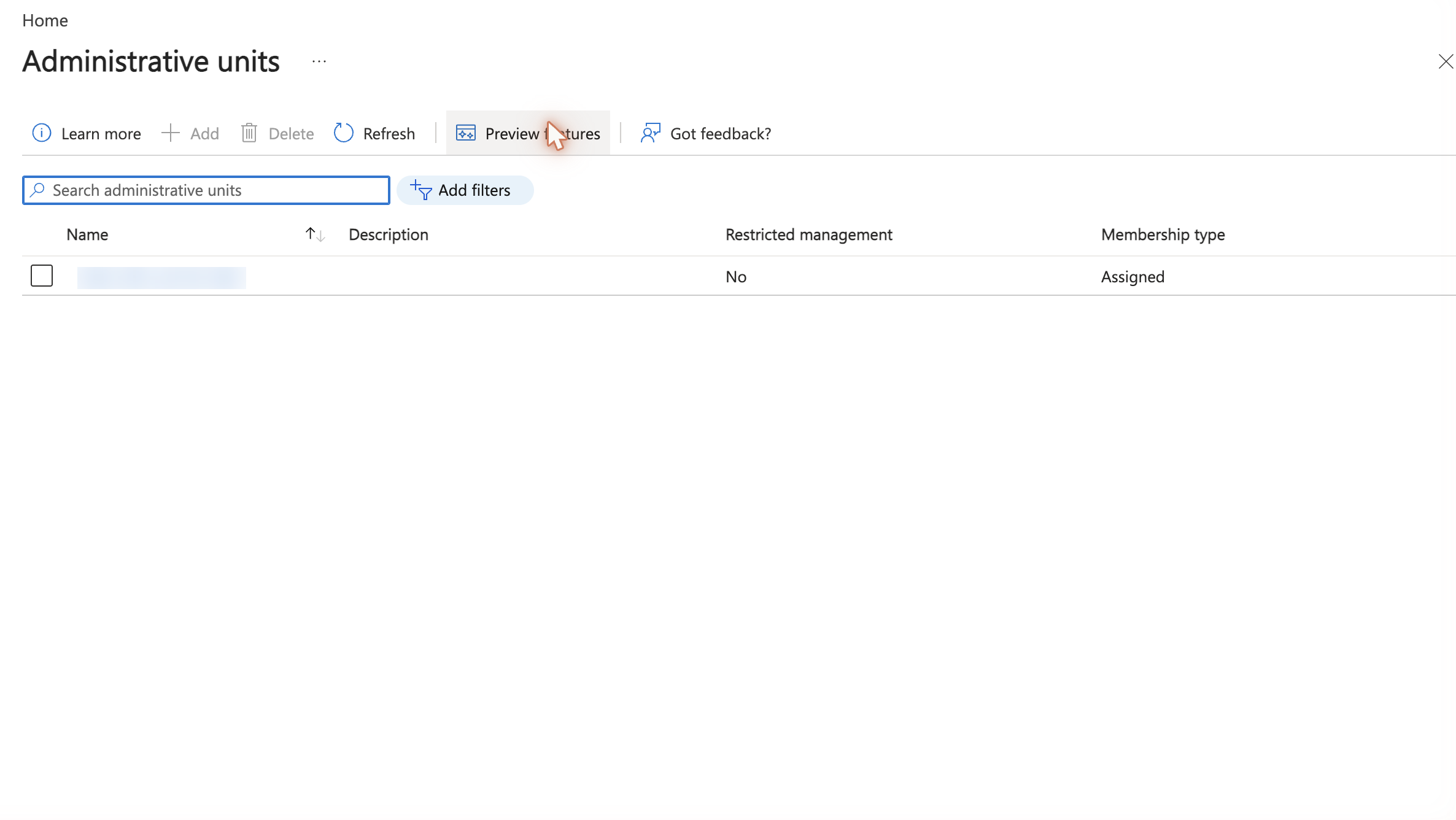
2. Assign the Groups Administrator role on the unit
Open the unit, select Roles and administrators, open Groups Administrator, and select Add assignments. Pick the Robopack enterprise application, or your own app registration if you connected with one, and confirm. The assignment is scoped to this unit, so Robopack can create and manage groups inside it and nothing outside it.
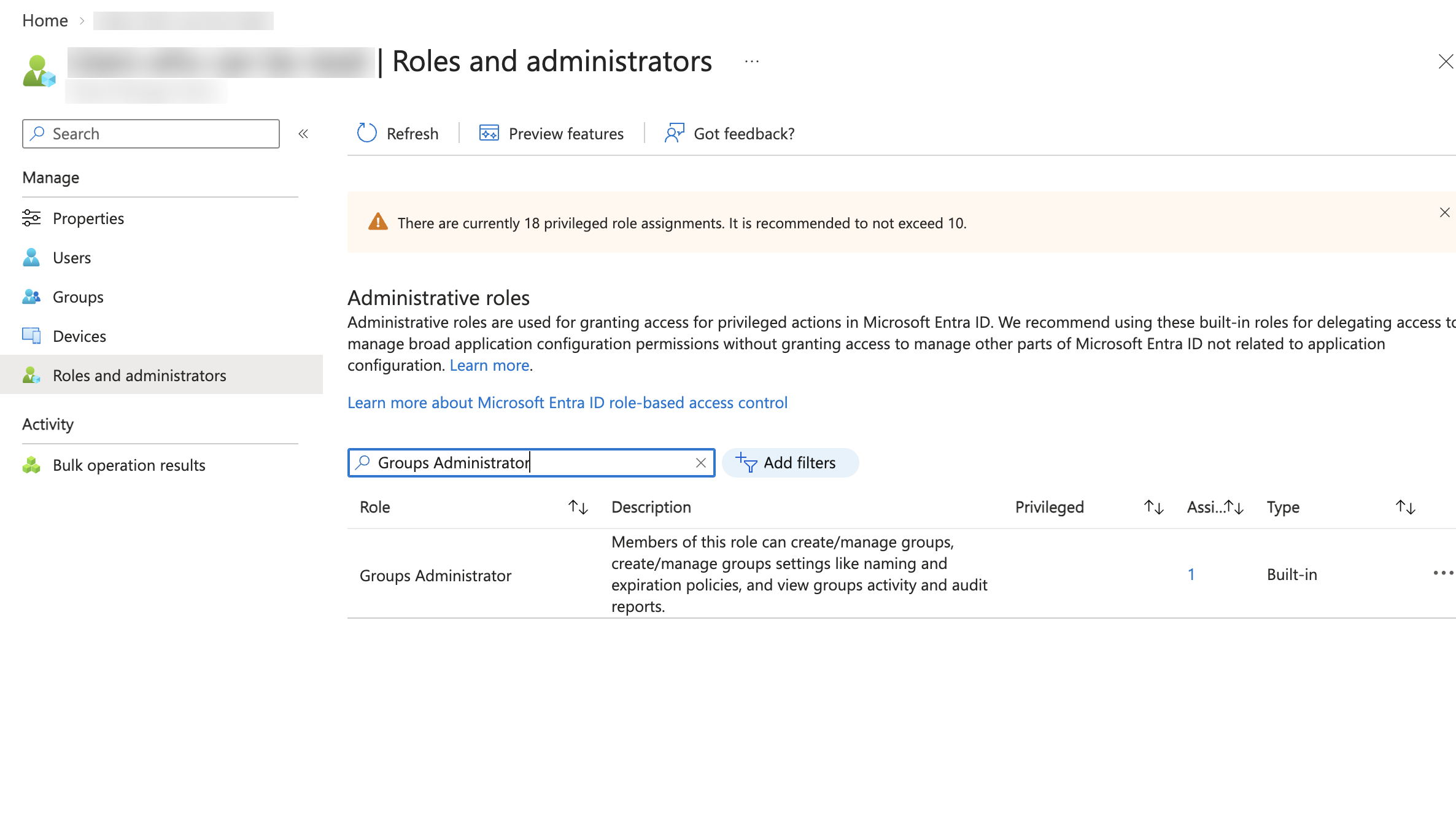
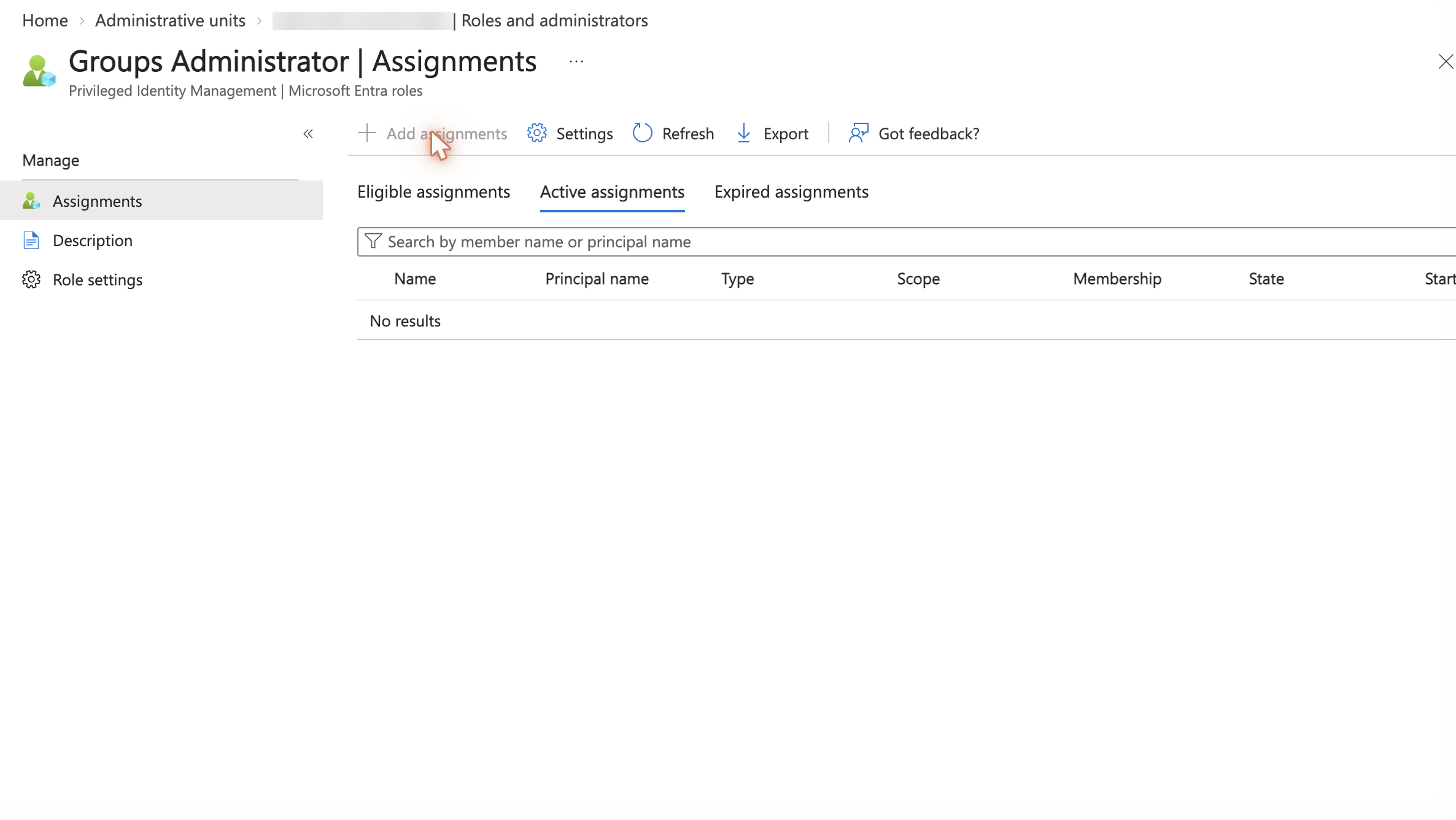
The role is what lets Robopack create groups. Without it, group creation is rejected whatever Graph permissions the application holds.
3. Grant the AdministrativeUnit.Read.All permission
Robopack needs the AdministrativeUnit.Read.All application permission to list the units in your tenant. It needs no Group permission, not even Group.Read.All.
- Custom app registration: open API permissions, select Add a permission > Microsoft Graph > Application permissions, add
AdministrativeUnit.Read.All, then select Grant admin consent for your organisation. You can leaveGroup.ReadWrite.Allout of the registration. - Robopack's enterprise application: on Settings > Tenants, select Connect tenant and consent again, so the new permission is granted to the Robopack application.
4. Select the unit in Robopack
-
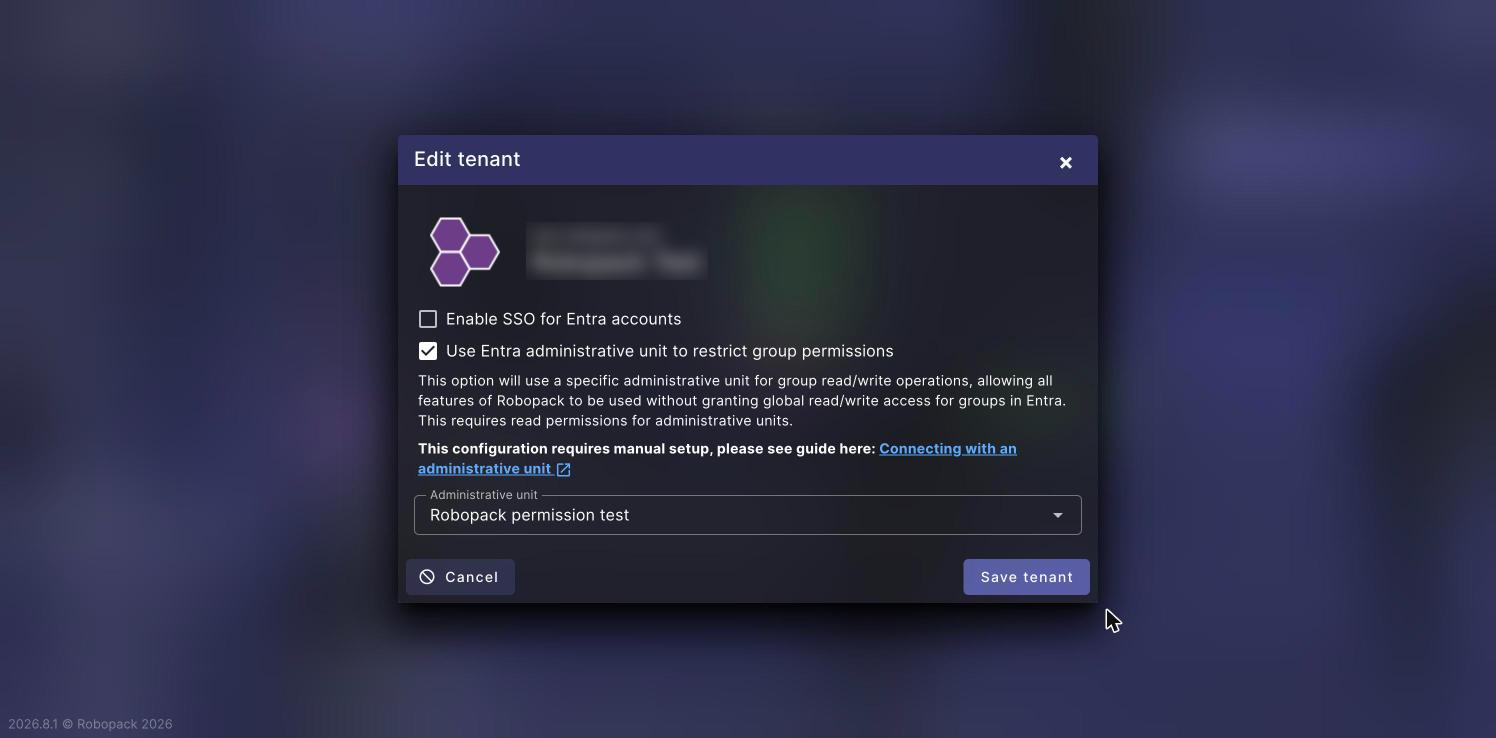
Open the tenant: Go to Settings > Tenants, open Details for the tenant, and select Actions > Edit tenant.
-
Turn the option on: Tick Use Entra administrative unit to restrict group permissions.
-
Pick the unit: In Administrative unit, choose the unit from step 1.
-
Save: Select Save tenant.
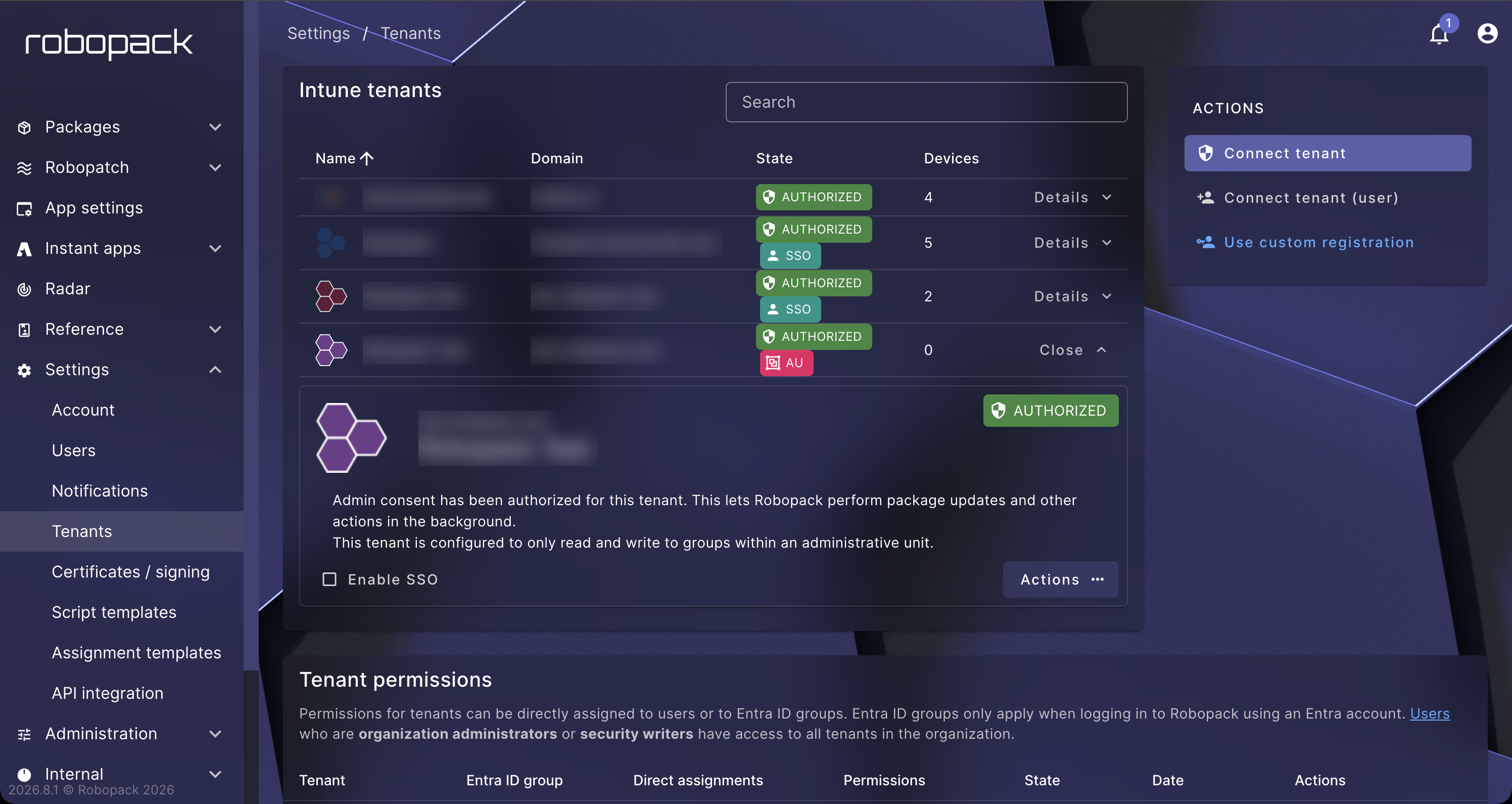
Result: The tenant row shows an AU badge next to AUTHORIZED, and the tenant details read "This tenant is configured to only read and write to groups within an administrative unit."
5. Verify the connection
Import an app with Create Deployment Assignments ticked, as in Auto-Creating Intune Assignments. In the Microsoft Entra admin center, open the unit and select Groups: the groups Robopack created for the app are listed there. Groups created before you selected the unit are not moved.
What's next?
- Auto-create Intune assignments and watch the groups land in the unit
- Assignment Templates control how Robopack names the groups it creates